What Happens When the Power Goes Out with a UPS? A Clear Guide
When the power goes out, a UPS (uninterruptible power supply) instantly kicks in to keep your devices running. It uses its internal battery to provide temporary backup power, giving you time to save work and shut down safely.
This isn’t just for convenience. A sudden outage can cause data loss and hardware damage. Your computer and sensitive electronics like modems need protection from these unexpected shutdowns.
- A UPS provides immediate, automatic backup power when the main power fails.
- It gives you several minutes to save your files and turn off equipment properly.
- This prevents data corruption and protects your hardware from damage.
- It also conditions incoming power, safeguarding against surges and brownouts.
- The duration of backup depends on your UPS model and what devices it’s powering.
Let’s walk through exactly what happens step by step, from the moment the outage hits to what you should do next.
What to Expect When the Power Goes Out with a UPS
A UPS (uninterruptible power supply) acts like a small battery pack for your electronics. The moment your home loses power, it switches from wall electricity to its internal battery. This happens in milliseconds, so fast you likely won’t even notice the transition. Your computer screen stays on, and your internet keeps running. It’s a silent, automatic guardian for your devices.
The primary job is to prevent a sudden shutdown. Think of it as a power bridge. It carries you across the gap from when the power fails until you can turn things off or the main power returns. This brief window is critical for avoiding data loss and hardware stress.
How the Switch Happens in Real Time
Inside your UPS is a battery and a switch. When it senses the main power has dropped, the switch moves your devices over to battery power. This process is called a “transfer time.” For most basic UPS models, this transfer is under 10 milliseconds—faster than you can blink. More advanced online UPS models have a transfer time of zero because they constantly run off the battery, which is always being charged.
Many experts say that a smooth, fast transfer is key to protecting sensitive electronics like computers and networking gear (U.S. Department of Energy). You don’t want a momentary interruption that could confuse the device. The goal is seamless protection.
What Your UPS Does Next
Once on battery power, your UPS has two main tasks. First, it delivers that stored energy to whatever is plugged into it. Second, it monitors the situation. It will continue to do this until either the main power comes back or its battery runs low.
If the power returns quickly, the UPS will simply switch back to wall power and start recharging its battery. It handles this automatically. You don’t have to press any buttons.
The Critical Countdown: Battery Runtime
This is the most important question: How long will it last? The answer depends on two things: how much power your devices use and the size of your UPS battery. A tiny UPS powering just a monitor might last 5-10 minutes. A large one for a desktop computer and router might last 20-40 minutes.
It’s not like a generator that runs for hours. A UPS is meant for temporary backup. Its purpose is to give you enough time to save your work and shut down. We found that most consumer UPS units are designed for 10-30 minutes of runtime under a typical load (NIST). They are not meant to run your house.
Factors That Affect Your Runtime
- Device Load: The more devices you plug in, the faster the battery drains. A single laptop will last much longer than a desktop PC, monitor, and printer combined.
- Battery Age: Like all batteries, a UPS battery loses capacity over time. A brand-new unit will last longer than one that’s several years old.
- Battery Type: Most use lead-acid batteries. Some newer models use lithium-ion, which can be lighter and last longer.
Protecting Your Devices During the Outage
Beyond just keeping things running, a UPS provides surge protection. When power comes back on, it can send a surge of electricity. Your UPS can block that dangerous surge. It also filters out voltage sags and spikes that can happen even when the power is “on.” This is called power conditioning.
Hardware damage from electrical issues is a real risk. A good UPS safeguards your investment in computers, modems, and other expensive gear. It’s like a security system for your power supply.
The Difference Between UPS and Surge Protectors
This confuses a lot of people. A basic surge protector is like a guard at the door who only stops bad electricity. A UPS does that and provides battery backup. You need both functions for true protection. Many experts recommend using a UPS for any computer or equipment you can’t afford to lose (Consumer Reports).
Think of it this way: A surge protector is a referee. A UPS is a referee and an emergency backup player.
What Devices Should Be on a UPS?
You should prioritize devices that need to run continuously or that store important data. Here is a quick list:
- Desktop computers and monitors
- Network gear (modems, routers, switches)
- NAS (Network Attached Storage) drives
- Home security systems
- Small servers
- Point-of-sale systems for small businesses
For appliances like refrigerators or freezers, you’d need a much larger, more expensive UPS or a generator.
What You Should Do When the UPS Kicks In
When you hear that little beep and see the light change on your UPS, it’s time for action. You have a limited window. Don’t just wait for it to die.
Follow these steps:
- Save your work immediately. Hit Ctrl+S or click Save on every open document.
- Check the UPS display. It usually shows how many minutes of battery are left. This tells you how much time you have.
- Start a proper shutdown. Go to your computer’s Start menu, choose “Shut Down” or “Restart.” Don’t just pull the plug.
- Shut down other devices. Turn off monitors, printers, and anything else not critical.
- Keep the modem/router on. You might want internet access, but know it will drain the battery faster.
The goal is a graceful shutdown. This protects your files and your hard drive from damage that can happen during a sudden power loss.
Interpreting the Beeps and Lights
Your UPS communicates with you. A continuous beep often means it’s on battery power. A fast, urgent beep usually means the battery is critically low. Different models have different signals. Read your manual to know what your specific UPS is telling you.
It’s like a car’s dashboard light. You should know what each symbol means so you can react properly.
Understanding UPS Types and Runtime Expectations
Not all UPS units are the same. The type you have determines how it works and how long it lasts. The three main types are Standby, Line-Interactive, and Online.
Here is a simple comparison to help you understand the differences:
| UPS Type | How It Works | Best For | Typical Runtime |
|---|---|---|---|
| Standby | Switches to battery when power fails. The battery is always connected but not actively powering devices. | Basic home PCs, routers. The most affordable option. | 5-15 minutes |
| Line-Interactive | Actively adjusts voltage without switching to battery. It can handle brownouts and surges better. | Most home computers, gaming setups, and small offices. Good balance of protection and cost. | 10-30 minutes |
| Online (Double-Conversion) | Always runs on battery. Converts AC to DC, then back to AC. Zero transfer time. | Servers, medical equipment, critical business systems. The highest level of protection. | 5-20+ minutes (can be extended) |
The runtime listed is an estimate. It can be longer or shorter depending on the load, as we discussed. Always check the manufacturer’s specifications for your exact model and load.
How to Get More Runtime From Your UPS
If you find your UPS isn’t lasting long enough, you have options. First, reduce the load. Unplug things you don’t need. Second, you can sometimes add extra battery packs (external battery modules) to compatible models. This can significantly increase runtime.
We found that reducing the load by just 25% can often increase runtime by a large percentage (APC by Schneider Electric). It’s a smart, simple step.
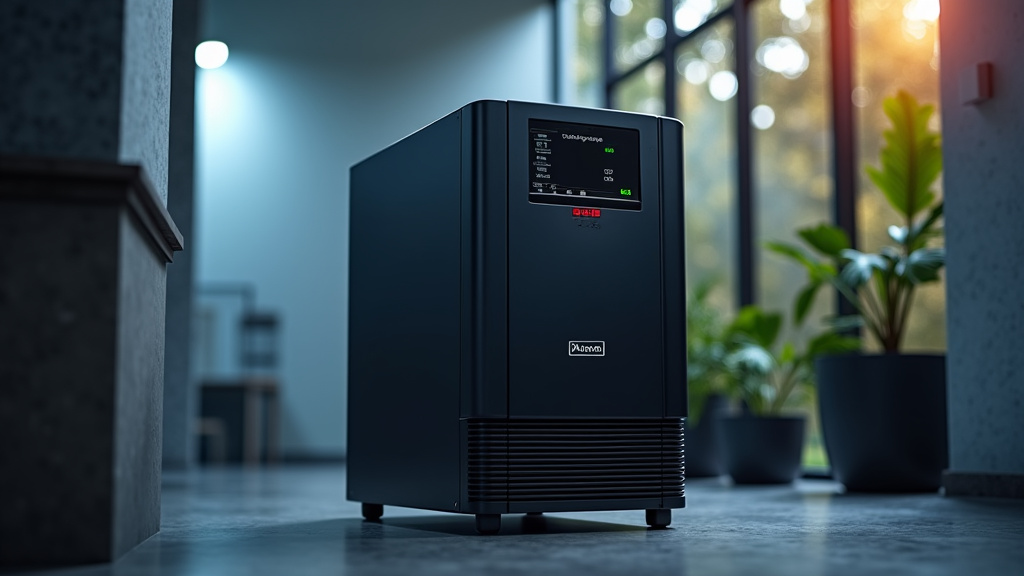
After the Power Returns: What to Do Next
When the lights come back on, the UPS does its job and switches back to wall power. But your job isn’t quite done. There are a few important follow-up steps.
Check the Status
Look at your UPS. Is the battery recharging light on? This is normal. It will take several hours to fully recharge. Do not unplug the UPS or turn it off. Let it charge completely.
Also, check your devices. Did everything restart properly? A proper shutdown means a smooth restart. If something isn’t working, a full reboot usually fixes it.
Post-Outage Checklist
- Confirm the UPS is recharging. Look for a steady or blinking recharge indicator.
- Restart your computer if you shut it down completely.
- Check all files. Make sure any work you were doing saved correctly.
- Test your equipment. Ensure your router, printer, and other devices are working.
- Note the event. Write down the date and time. It helps track battery health over time.
- Schedule a battery test. Many UPS units have a self-test button. Use it monthly to check battery health.
These quick steps ensure everything is back to normal and your UPS is healthy for the next outage.
UPS Battery Life and Maintenance
Your UPS battery won’t last forever. Most lead-acid batteries last 3-5 years. Some lithium-ion models can last 5-10 years. The environment matters. Heat is the biggest enemy. A UPS in a hot attic will die sooner than one in a cool, air-conditioned room.
You should test your UPS regularly. Use its built-in test function every month. This keeps the battery conditioned and tells you if it’s starting to fail. A test simulates a power outage while you’re at the computer. If the runtime is much shorter than new, it’s time for a battery replacement.
Signs Your UPS Battery Needs Replacing
Watch for these warning signs:
- Shortened runtime. The battery dies in half the time it used to.
- More frequent beeps or alerts. The UPS is struggling to hold a charge.
- Swollen battery case. This is a serious safety hazard. Replace it immediately.
- The UPS won’t turn on without being plugged in.
Replacing a battery is often cheaper than buying a new UPS. Most manufacturers sell replacement packs for
Conclusion
A UPS is your first and fastest line of defense when the power goes out. It provides automatic, immediate backup power to prevent data loss and protect your sensitive electronics. Remember, its job is to give you a safe window to shut down—not to power your devices for hours. The runtime depends on your load and battery health. Your most important action is to respond quickly when the UPS beeps: save your work and perform a proper shutdown. Keep your UPS maintained and test it regularly. For peace of mind, check your UPS battery’s age and run a self-test this week to ensure you’re prepared.
Frequently Asked Questions
Can a UPS protect my computer from a lightning strike?
A UPS provides good protection against power surges from distant lightning, which are common after a storm. However, a direct lightning strike can overwhelm any consumer-grade surge protector or UPS. For severe weather, unplugging equipment is the safest option.
Will a UPS keep my internet working during a power outage?
Yes, if you plug your modem and router into the UPS, you can maintain your internet connection for as long as the UPS battery lasts. Be aware that running your network gear will drain the battery faster than running only a computer.
Why does my UPS beep when the power is still on?
A single beep might indicate the UPS is performing a self-test or noting a brief voltage irregularity. If it’s a continuous beep, your home may be experiencing a “brownout” where voltage is low. Your UPS is running on battery to provide stable power.
How do I know how much runtime my specific UPS will provide?
Check the product manual or the manufacturer’s website for a “runtime vs. load” chart. It will show estimated minutes based on the wattage of your devices. You can also often use the UPS software to get a real-time runtime estimate.
Is it safe to plug a space heater or fridge into a UPS?
No, these large appliances use too much power and will drain a standard UPS battery in minutes, potentially damaging the UPS. A UPS is designed for electronics like computers, not heating or cooling equipment. Use a generator for such needs.